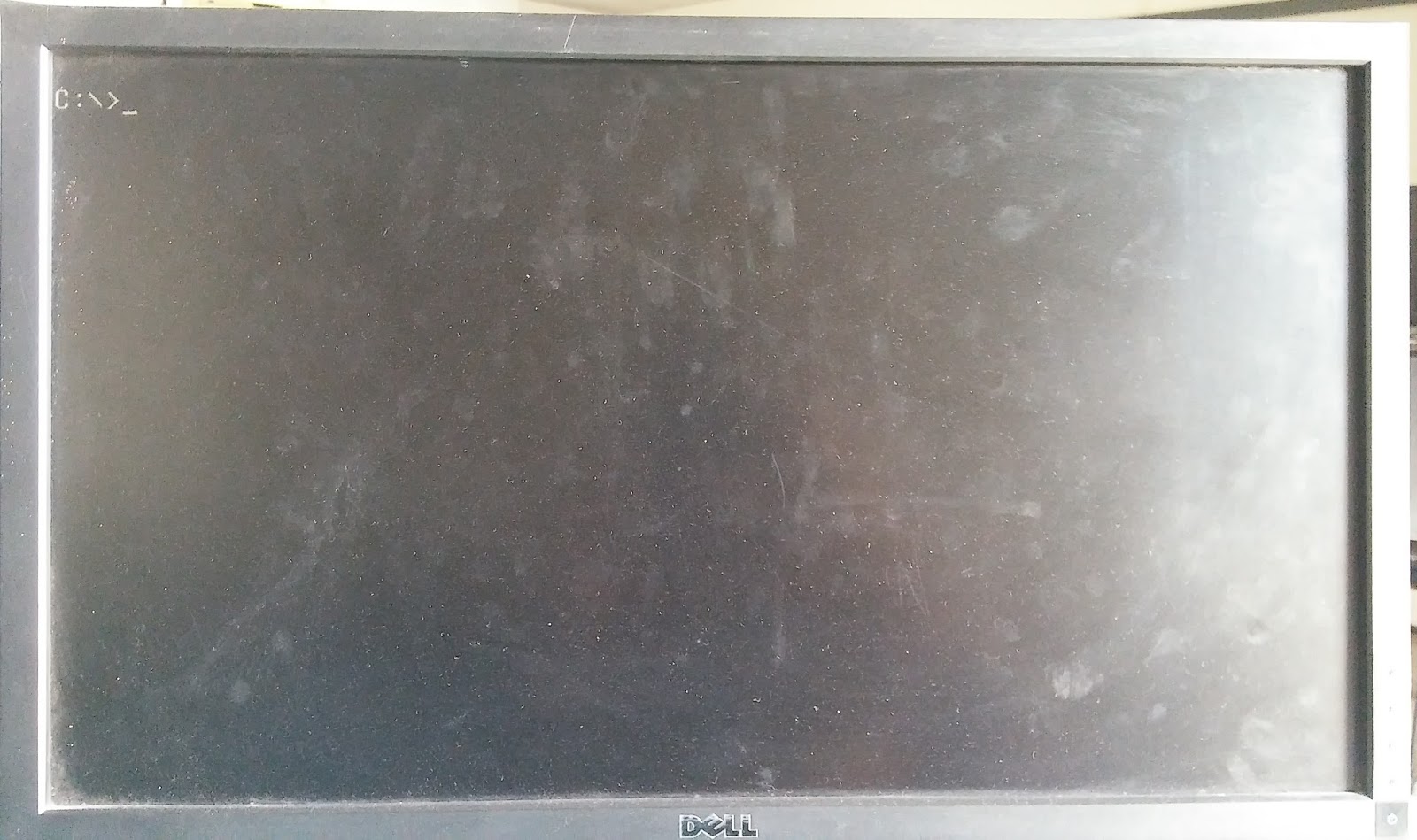
Command Line Commands:
- Type the below command highlighted in the red box to know the system info.
- A window will appear showing the system information as below.
Type the below command highlighted in the red box to put all the files in a directory into text file.
Type the below command highlighted in the red box to know the ip related info.
- Type the below command highlighted in the red box to trace the time to goto a server.
- Type the below command highlighted in the red box to know the mac address of all the devices in a network.
- Type the below command highlighted in the red box to change the ip address of the computer.
- Type the below command highlighted in the red box to encrypt the files in a folder.
- Type the below command highlighted in the red box to decrypt the files in a folder.
- Type the below command highlighted in the red box to burn the file to cd/dvd.
Change Aspect Ratio:
- Right click in the empty space on the desktop and then click on Display settings.
Change the orientation:
Change task bar location:
- Right click on the task bar and then click on properties.
Set up a screen saver:
- Open settings and search for screen saver in the search box and click on Change screen saver.
- A window will appear as below.
- Leave the system idle for wait time that is mentioned during setting and screen saver will appear.
- If we check On resume, display log-on screen. It will display log on screen on mouse click/hitting any key on keyboard.
DOS 7.1 Installation:
- Download the iso file and burn to the CD/DVD.
- Insert the CD into the drive and restart the computer.
- Press key ( like F10 or F12) which opens the boot manager. This key is different for different mother boards. In my case it is Esc.
- Select boot option as from the CD/DVD ROM.
- MS DOS Installation menu appears as below. Hit Enter to continue installation.
- Agree the licence and click on Next.
- Read the message and click on Yes or No accordingly as needed.
- Select the options as needed and click on Next.
- Read the message and click on Yes or No accordingly as needed.
- A screen will appear as below. It displays what all programs will be installed. Click OK.
- Read the message and click on Yes or No accordingly as needed.
- Click on Load both. This will install the CD-ROM driver.
- Check the programs to be installed and click Continue.
- Setup will complete and message is displayed as below.
- Click Yes to restart the system.
- DOS is installed and ready to use.